

The LA-K371P BIOS firmware package is designed for several Dell business laptops, including Dell Latitude 7320, Latitude 7420, and Latitude 7520. This package contains the 32MB tested BIOS dump along with the motherboard boardview file, which is useful for motherboard diagnostics and firmware repair.
If your laptop is experiencing issues such as BIOS corruption, no display, system not booting, or getting stuck at the Dell logo, flashing a verified BIOS firmware dump can help restore the system functionality. The BIOS file provided here is tested and verified, making it suitable for professional technicians performing chip-level laptop repairs.
About Dell Latitude 7320 / 7420 / 7520 Series
The Dell Latitude 7000 series is designed for enterprise users who require reliability, performance, and advanced security features. Models such as Latitude 7320, Latitude 7420, and Latitude 7520 are widely used in corporate environments, educational institutions, and professional workplaces.
These laptops are known for their stable hardware architecture and long lifecycle support. Because they are deployed in many corporate setups across India, the United States, and other global markets, technicians often require BIOS firmware files and boardview diagrams when repairing firmware-related motherboard problems.
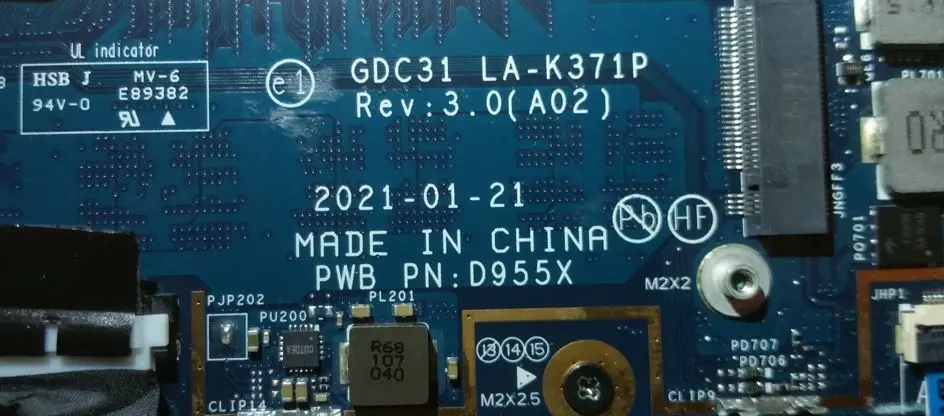
| Parameter | Details |
|---|---|
| Motherboard | LA-K371P |
| Laptop Model / Series | Dell Latitude 7320 / 7420 / 7520 |
| Main BIOS Size | 32 mb |
| Package Files | BIOS + Boardview |
| EC BIOS | – |
| Tested | Yes ok tested Clean me |
BIOS Download
Login is required to download the BIOS package. Registered users can access the tested BIOS firmware dump and motherboard boardview file for professional repair and motherboard diagnostics.
BIOS Package Information
- Main BIOS firmware file – 32MB
- Motherboard boardview file
- Verified working BIOS dump
- Stable boot tested
- Suitable for BIOS corruption repair
- Compatible with SPI programmers
🔄 Update BIOS from Official Dell Support (For Working Laptops)
If your Dell laptop is powering on normally and working without major issues, it is recommended to update the BIOS using the official Dell support website.
Dell provides the latest BIOS updates based on your exact laptop configuration using the Service Tag, ensuring proper compatibility and system stability.
👉 Visit Dell official support page:
https://www.dell.com/support/home/en-in?app=drivers
Steps to follow:
- Enter your Dell laptop Service Tag or model number
- Open the Drivers & Downloads section
- Download the latest BIOS version available
- Follow Dell’s official update instructions carefully
⚠️ Note: Official BIOS updates are always safer for working systems. The BIOS files provided on this page are intended for repair purposes such as BIOS corruption, no display, or boot failure.
About the LA-K371P Motherboard
The LA-K371P motherboard platform is used in the Dell Latitude 7320, Latitude 7420, and Latitude 7520 laptop series. This motherboard integrates the Intel processor platform, chipset controller, graphics interface, memory architecture, and power management circuitry.
The firmware controlling the system is stored inside a SPI flash BIOS chip. This firmware is responsible for initializing hardware components and controlling the system boot process. If the BIOS becomes corrupted due to firmware errors, interrupted updates, or electrical faults, the laptop may fail to start correctly.
Reprogramming the BIOS using a verified firmware dump can help restore normal motherboard functionality.
When to Flash This BIOS
Technicians may need to flash the BIOS in the following situations:
- Laptop powers on but no display
- System stuck at Dell logo
- BIOS corruption
- Laptop not booting properly
- Automatic restart loop
- Firmware failure after BIOS update
Flashing Instructions
- Disconnect the laptop battery and power adapter.
- Locate the SPI BIOS chip on the LA-K371P motherboard.
- Use an SPI programmer such as CH341A, RT809H, or TL866.
- Backup the original BIOS firmware before flashing.
- Load the BIOS dump file into the programming software.
- Write the firmware to the SPI flash chip.
- Verify the programming process.
- Reassemble the laptop and test system boot.
Important Notes
- Confirm the motherboard model LA-K371P before flashing.
- Always backup the original BIOS firmware before programming.
- Use reliable SPI programming tools.
- BIOS flashing should only be performed by experienced technicians.
⚠️ Important Disclaimer
⚠️ Not a technical person?
If you are not a trained technician, please do not attempt to flash the BIOS of your Dell Latitude 7320, Latitude 7420, or Latitude 7520 (LA-K371P motherboard) without proper knowledge and tools. Incorrect BIOS flashing can permanently damage the motherboard and prevent the laptop from booting.
BIOS programming requires chip-level repair skills, SPI programmers, and professional diagnostic equipment.
If you are unsure about the process, it is recommended to visit a professional repair center where qualified technicians can safely perform BIOS repairs.
📍 New Delhi → Laptop Repair in New Delhi
https://ezonecare.com/new-delhi/
📍 Ranchi → Laptop Repair in Ranchi
https://ezonecare.com/ranchi/
📍 Chandrapur → Laptop Repair in Chandrapur
https://ezonecare.com/chandrapur/
For laptop repair in other cities across India, visit EzoneCare
Our technicians specialize in chip-level laptop repair, BIOS programming, motherboard diagnostics, and firmware recovery using professional repair equipment.
Disclaimer
The BIOS files provided on this website are intended for educational and professional motherboard repair purposes only. Flashing BIOS firmware carries risk and should only be performed by qualified technicians. The website is not responsible for damage caused by improper firmware flashing.